Live chat and human handoff
Live chat where the AI answers first and your team takes over
Chatsy's live chat puts an AI agent in front of your website chat. It answers from your help content and, when it cannot help, moves the conversation to your team's queue with the full transcript. The visitor stays in the same chat window. Live chat is included from the Hobby plan at $40 a month.
What your team sees in Live chat
The zipper broke after a week. Can someone take a look?
Damage in the first 30 days is covered, so I’ll pass this to the team with our conversation attached.
Moved to live chat with the transcript
Internal note · Delivered 9 days ago, so the 30-day policy covers it.
Hi, I’m Sam from the team. I can see the whole conversation, so let’s sort this out.
What it does
Live chat in Chatsy
AI answers first
The agent replies from the sources you added and cites them, so most repeat questions never reach the queue.
Handoff with the transcript
An Escalate to Human tool moves the chat to Live chat with the reason, a short summary and a priority.
Clear triggers
A request for a person, no answer in the sources, an unsure reply, negative feedback or a repeated question.
Claim, release, resolve
A teammate claims a chat so nobody doubles up, releases it back to the queue, resolves it, or hands it back to the AI.
Faster replies for your team
Saved replies, file attachments up to 10 MB and, with the AI drafts module, a suggested reply to start from.
Alerts and follow-up
Escalations can post to a connected Slack channel. Visitors can leave an email so the owner can follow up.
- 01
Add knowledge to the agent
The fewer questions the agent can answer, the more chats land in your queue.
- 02
Switch on the Live chat module
In Settings → Modules. This adds the Escalate to Human tool to your agents.
- 03
Write your handoff rules
Tell the agent in its instructions which topics always go to a person, such as refunds or account changes.
- 04
Test the off-hours path
With nobody in the dashboard, ask for a person and check what the visitor sees and whether your alert arrives.
Human handoff
What happens when the agent hands a chat to your team
A handoff moves the same conversation, not a copy, from the AI agent to a person. Here is each step, from the trigger to the reply.
Set up human handoff- 01
A trigger fires
The visitor asks for a person, the sources have no answer, the reply is unsure, the visitor rates it down or says it did not help, the same question comes back, or one of your topic rules applies.
- 02
The chat is escalated
The agent uses its Escalate to Human tool, or the visitor picks the option to reach a person in the widget. The chat is marked escalated with a reason and a priority from Low to Urgent; the agent also adds a short summary.
- 03
The visitor is told
A fixed message in English says they are connected to the support queue and a person will be with them shortly. They stay in the same chat window.
- 04
Your team sees it
The chat appears in the Live chat queue in real time with the transcript. If Slack is connected with alerts on, an escalation alert with the summary or reason is posted to your channel.
- 05
A teammate claims it
Claiming assigns the chat, so nobody else can pick it up. Replies appear in the visitor’s window and do not use credits.
- 06
The loop closes
Resolve the chat, release it back to the queue for someone else, or hand it back to the AI agent for the rest of the conversation.
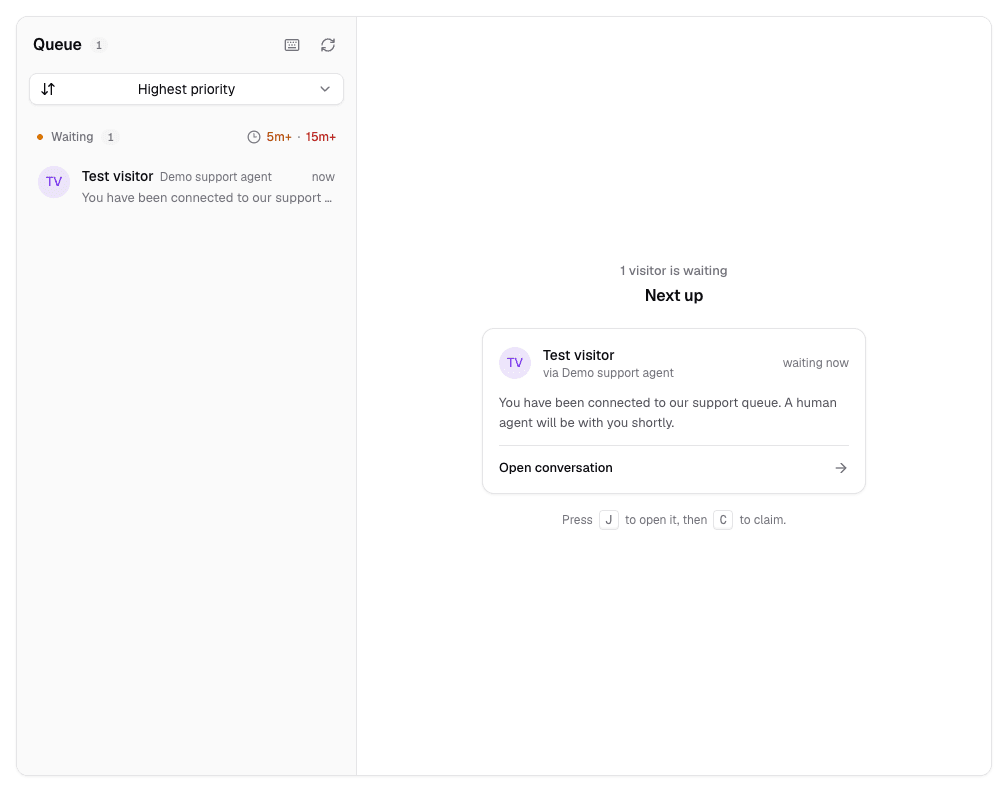
1. The chat waits in the queueOne visitor waiting, shown as Next up on the Live chat page. Local test workspace with test data, captured November 12, 2026. 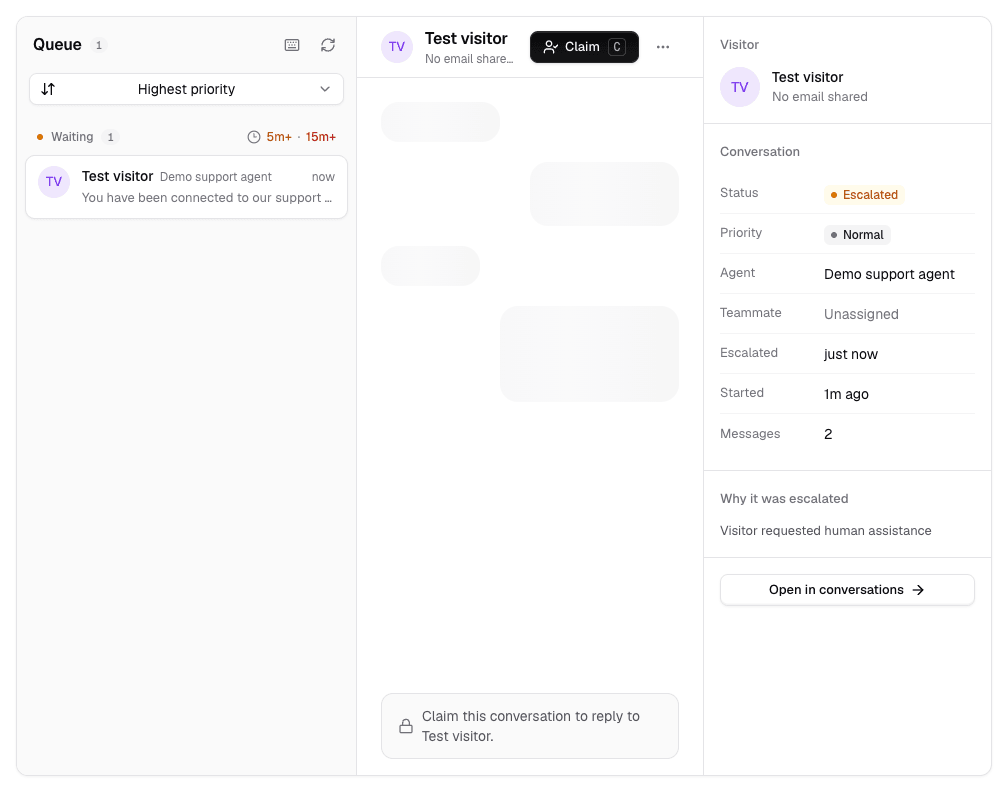
2. A teammate opens itThe open conversation shows the transcript and the escalation reason before anyone claims it. Local test workspace with test data, captured November 12, 2026. 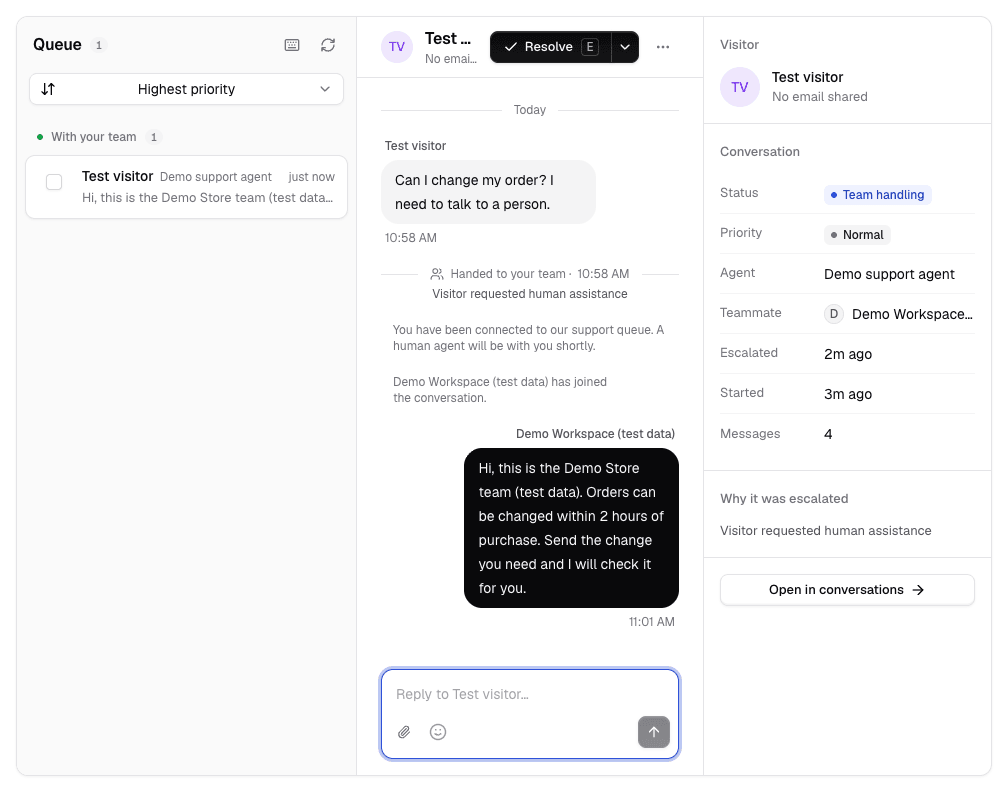
3. Claimed and answeredAfter Claim, the teammate reply appears in the thread and in the visitor’s chat window. Local test workspace with test data, captured November 12, 2026.
There is no online or away status, so the visitor sees the same message when nobody is watching the queue. Put your support hours in the welcome message and let visitors leave an email for a follow-up.
Plans
Live chat on each plan
Teammate replies do not use credits; AI replies do. Seats include the workspace owner. See message credits for how far each allowance goes.
| Plan | Live chat | Team seats | AI credits / month | AI drafts |
|---|---|---|---|---|
| Free ($0/mo) | 1 | 40 | ||
| Hobby ($40/mo) | 1 | 500 | ||
| Standard ($150/mo) | 3 | 4,000 | ||
| Pro ($500/mo) | 5 | 15,000 | ||
| Enterprise (quote) | 10 | 100,000 |
Where it stops
What Chatsy live chat does not do
- There is no online, away or busy status for teammates. Every handoff joins the queue, and the visitor is told a person will be with them shortly even when nobody is online.
- Chatsy does not email your team when a chat is escalated. Use a Slack alert or keep the dashboard open during support hours.
- There is no routing by skill, round-robin assignment or SLA timer. Teammates claim chats from one queue.
- Chat happens on your website widget or hosted chat link. WhatsApp, Messenger, Instagram and SMS are not channels.
- The widget interface is available in English and Spanish only.
- There are no CSAT surveys or sentiment scores. Analytics show conversations, handoffs, ratings and first-reply time.
Not a fit if
- You need staffed 24/7 coverage with presence-based routing across many agents.
- Most of your support happens on social or messaging apps rather than your website.
- You need more than 10 people in the queue: Enterprise includes 10 seats.
- You want a free plan with live chat: Free covers the AI agent only.
FAQ
Questions before you turn it on
Read next
Guides for this module
- Human handoff setupTurn on the module, set triggers and test off-hours behavior.
- When to escalate AI to a humanWhich conversations should always reach a person.
- Shared inbox and email ticketsHandle requests that need follow-up by email.
- Install the chat widgetOne script tag, platform notes and troubleshooting.
- What is human handoff?The term, and how it differs from a callback or ticket.
- PricingSeats, credits and modules on every plan.
Answer the repeat questions. Keep a person for the rest.
Build an agent from your help content on the Free plan, then add live chat on Hobby when you are ready for handoff.
Free plan available. No credit card required.