Hand conversations from the AI agent to your team
Turn on Live chat so the agent can hand a conversation to a person: what triggers a handoff, how teammates take over, and what visitors see when nobody is online.
Updated
When a Chatsy agent cannot help, it hands the conversation to your team. The visitor stays in the same chat window, the conversation moves to a queue in the dashboard's Live chat page with the full transcript, and a teammate takes over from there. Handoff needs the Live chat module, which is included on Hobby and every plan above it. Free plans do not have live chat; their visitors can leave an email address for a follow-up instead.
Turn on live chat
- Go to Settings → Modules and switch on Live chat ("Move escalated conversations into the team queue").
- Chatsy adds a built-in Escalate to Human tool to your agents. It counts toward the agent's action limit (5 on Hobby, 10 on Standard, 15 on Pro).
- Open Live chat in the sidebar. Escalated conversations appear there.
Paid workspaces usually have the module on already: upgrading turns every module on.
What triggers a handoff
The agent offers a person, or escalates, when one of these happens:
| Trigger | Example |
|---|---|
| The visitor asks for a person | "Can I talk to a human?" |
| No answer was found in the sources | A question your content does not cover |
| The agent is unsure | Its reply says it cannot confirm or does not know |
| Negative feedback | "That didn't answer my question" |
| A repeated question | The visitor asks the same thing again |
| An error | The reply could not be generated |
You can also tell the agent when to hand off in its instructions (Settings → AI), for example: "Always hand off refund disputes and anything about a damaged order."
What the visitor sees
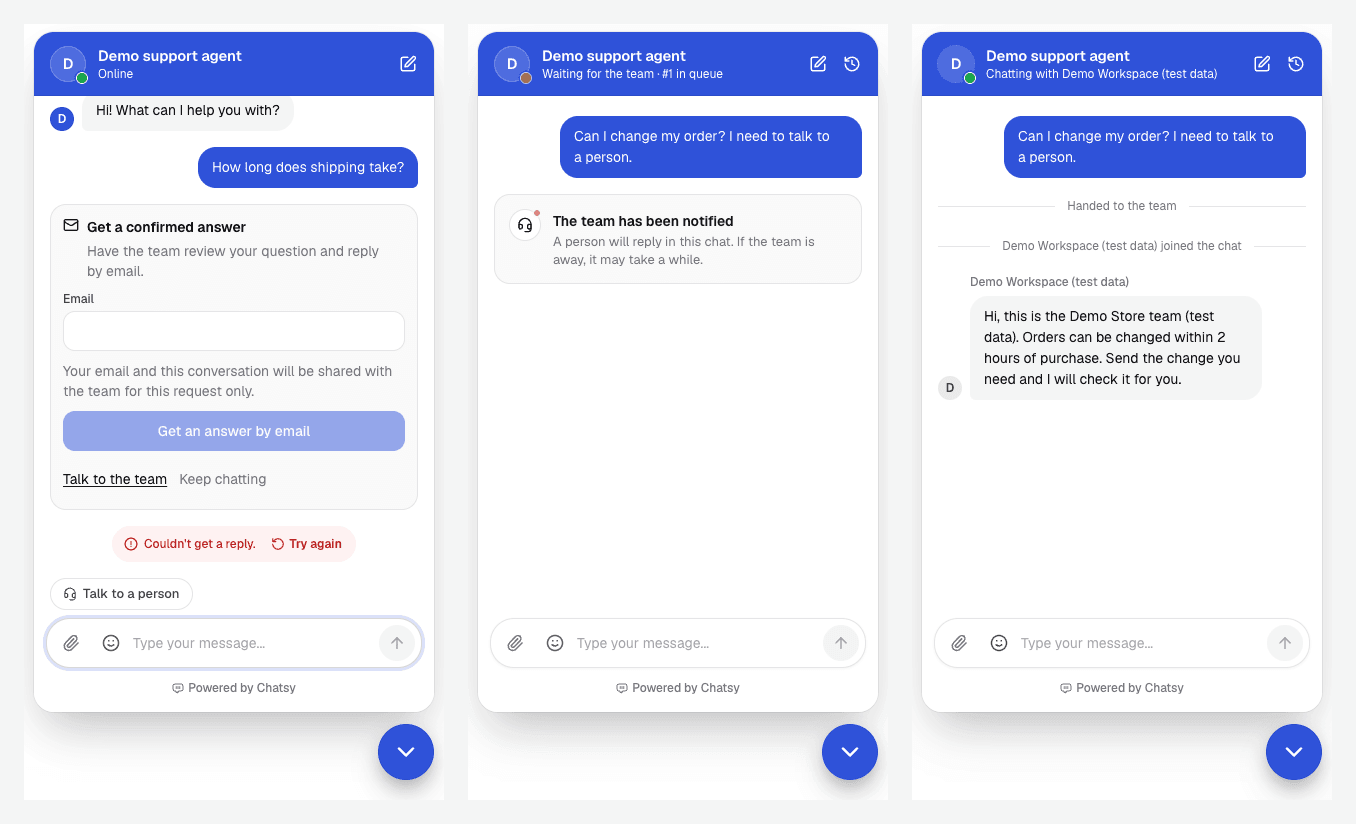
When the agent escalates with its Escalate to Human tool, Chatsy posts this message in the chat:
I've connected you to our support queue. A human agent will be with you shortly to help with your request.
When the visitor asks for a person from the widget instead, the message reads: "You have been connected to our support queue. A human agent will be with you shortly."
The visitor keeps the same chat open. When a teammate replies, the reply appears in that window.
How your team takes over
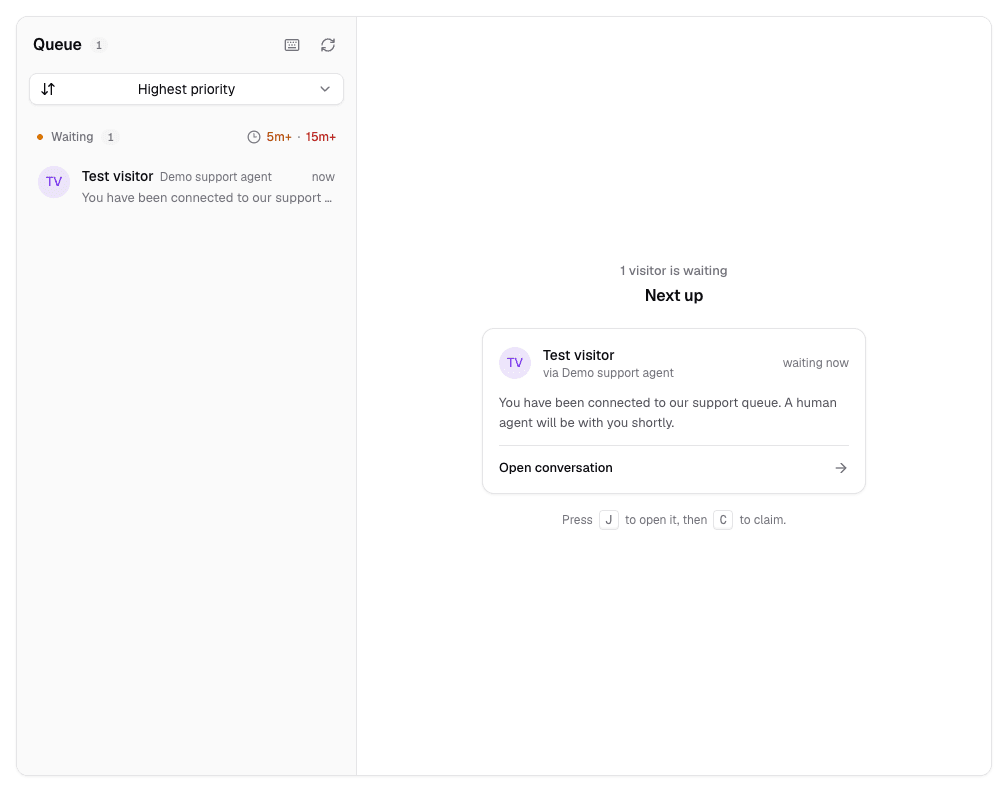
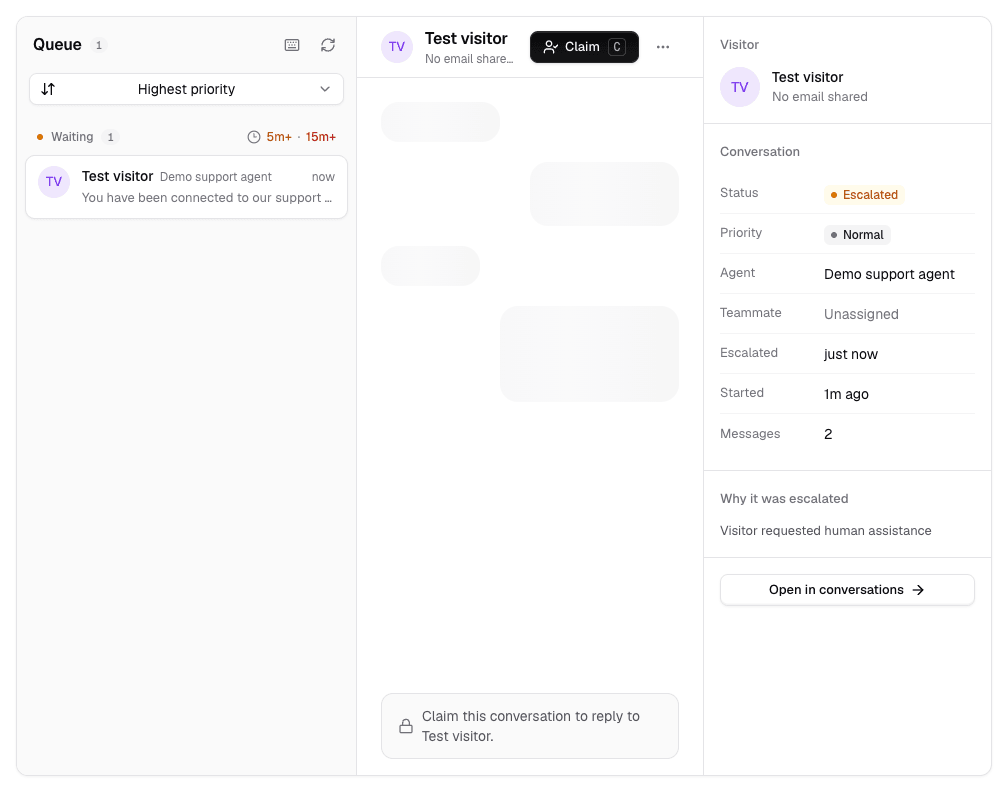
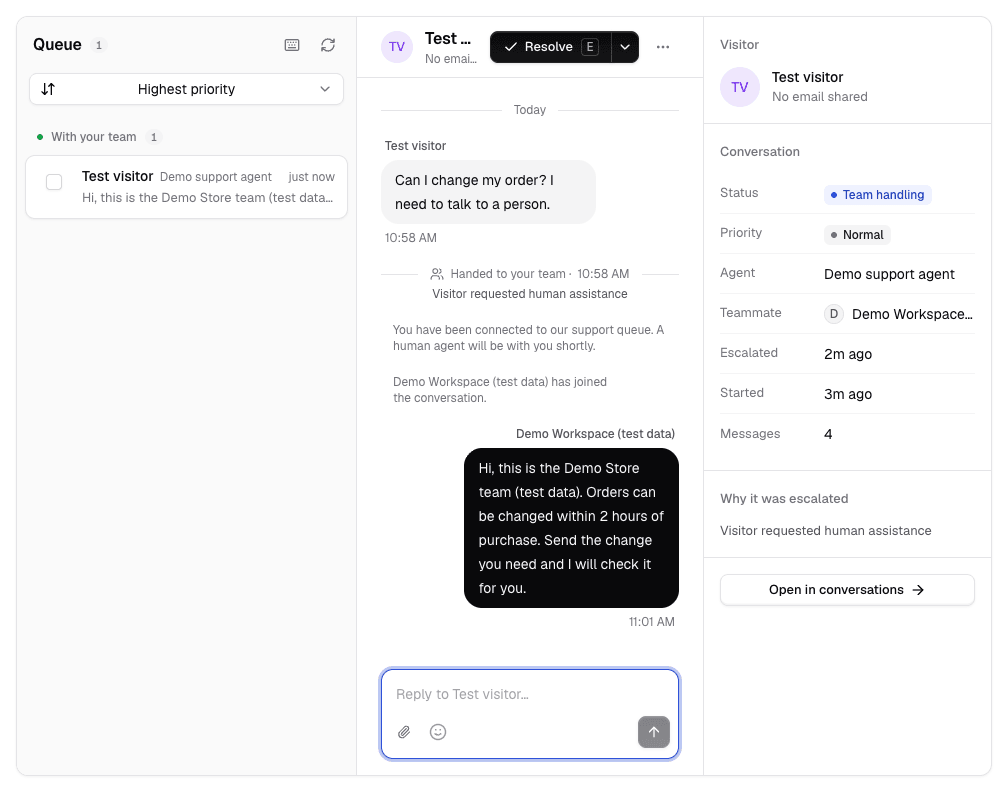
In Live chat, each escalated conversation shows the transcript, the reason it was escalated, a short summary and a priority (low, normal, high or urgent). A teammate can:
- Claim the conversation. It is assigned to them, and nobody else can claim it.
- Release it back to the queue for someone else.
- Resolve it when the visitor's question is answered.
- Hand back to AI so the agent continues the conversation.
Teammates can attach files up to 10 MB, use saved replies, and, with the AI drafts module on, start from a suggested reply. Teammate replies do not use message credits.
Live chat updates in real time in the dashboard. Each teammate needs a seat: Hobby has 1 (the owner), Standard 3, Pro 5 and Enterprise 10.
When nobody is online
Chatsy has no online or away status for teammates. Every escalation goes into the queue and the visitor sees the "connected you to our support queue" message whether or not anyone is watching. Plan for this before you turn handoff on:
- Staff the queue during your published support hours, and say what those hours are in your welcome message or instructions, so visitors know when to expect a reply.
- Turn on an alert. If Slack is connected in Settings → Integrations with alerts turned on, Chatsy posts the escalation summary to the channel you chose. Chatsy does not send an email to your team when a chat is escalated.
- Collect an email address. Visitors can leave an email for a follow-up; Chatsy emails the agent owner with the question and the visitor's address as reply-to. Set when the widget asks for an email in the agent's settings.
Test the off-hours path before launch. With nobody in the dashboard, open your site in a private window, ask for a person, and check what the visitor sees, whether your Slack alert arrives, and whether the follow-up email reaches the owner.
Email requests and tickets
Handoff covers the chat widget. For email, connect a support address to the Inbox so messages arrive as numbered tickets your team can assign and answer. See Connect your support email. With the Inbox on, agents also get a Create Support Ticket tool for requests that need follow-up by email.
Review handoffs every week
Conversations handed to a person show up in the agent's Analytics under knowledge gaps. If the same question keeps reaching your team, add the answer to a source so the agent can handle it next time. See Add knowledge sources.
Related
- Live chat with human takeover: what the module includes
- Install the chat widget
- When to escalate AI to a human