Connect your support email to the Chatsy inbox
Forward your support address to Chatsy so emails arrive as numbered tickets: verify the address, set up forwarding, send a test and choose how replies go out.
Updated
Chatsy's Inbox turns email sent to your support address into tickets your team can assign and answer. You keep your existing address (for example support@yourcompany.com): verify that you own it, then set your email provider to forward its mail to a Chatsy address. Each email becomes a ticket with a number, a status and an owner. The Inbox needs the Inbox and tickets module, which is included on Hobby and above.
What you need
- A Hobby, Standard, Pro or Enterprise plan. Each plan allows a set number of mailboxes: 1 on Hobby, 2 on Standard, 5 on Pro and 10 on Enterprise.
- Owner or Admin access to the Chatsy workspace.
- Access to your email provider's forwarding settings (Google Workspace, Microsoft 365 or similar), or someone who has it.
Step 1: Create a mailbox
Open Inbox in the sidebar and create a mailbox. Chatsy gives it a forwarding address of its own, in the form mailbox-…@…, and shows a checklist titled Connect your support email.
Step 2: Verify your address
Chatsy sends a 6-digit code to the support address you entered. Open that inbox, then choose Enter code in Chatsy. The code expires after 15 minutes; request a new one if it runs out. The mailbox does not accept email until the address is verified.
Step 3: Forward your address to Chatsy
In your email provider's settings, forward your support address to the Chatsy forwarding address shown in the checklist. Copy it from the forwarding address field rather than typing it.
Forwarding is set up in your email provider, not in Chatsy, and the exact steps differ. Most providers ask you to confirm a new forwarding destination before they start sending. If yours does, the confirmation is sent to the Chatsy forwarding address and should appear in the mailbox as a new ticket: open it and follow the link.
Keep a copy in the original inbox while you test, so nothing is lost if forwarding is misconfigured.
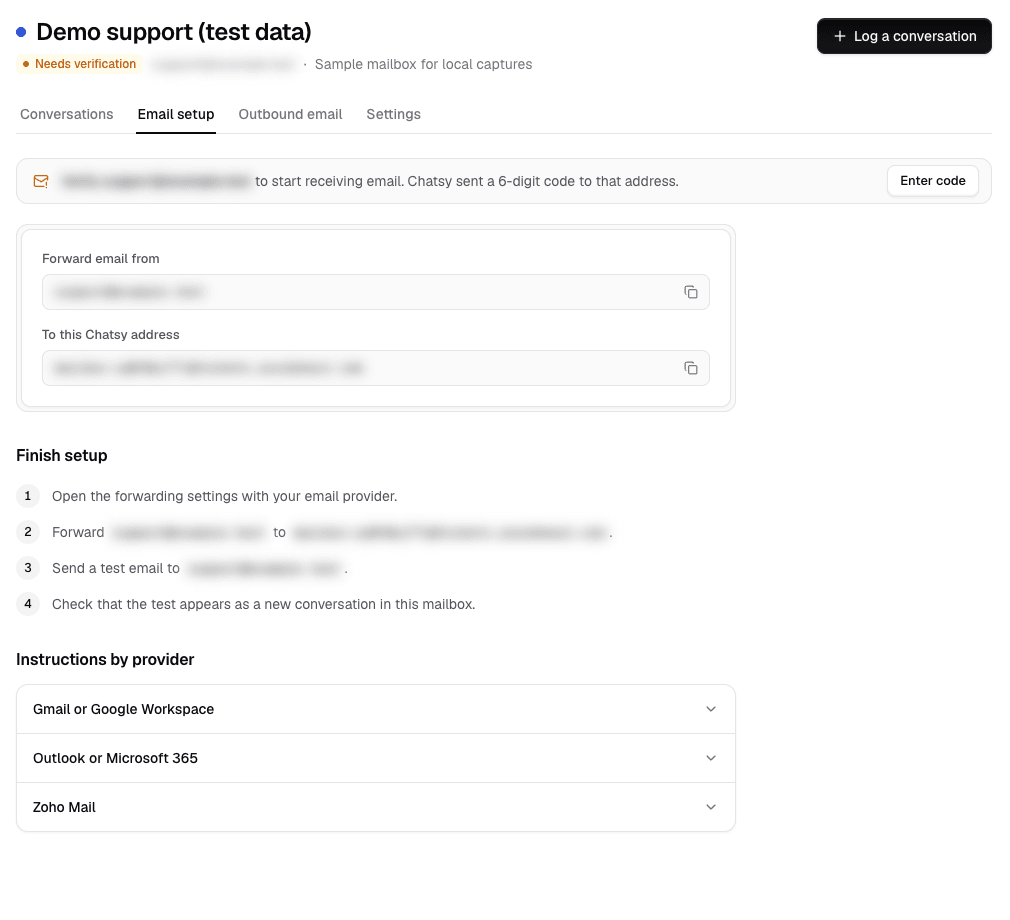
Step 4: Send a test email
From a different email account, send a message to your support address. It should arrive in the Chatsy mailbox as a new ticket. If it does not appear within a few minutes, check the forwarding rule and that the address shows as verified.
How tickets work
| Feature | What it does |
|---|---|
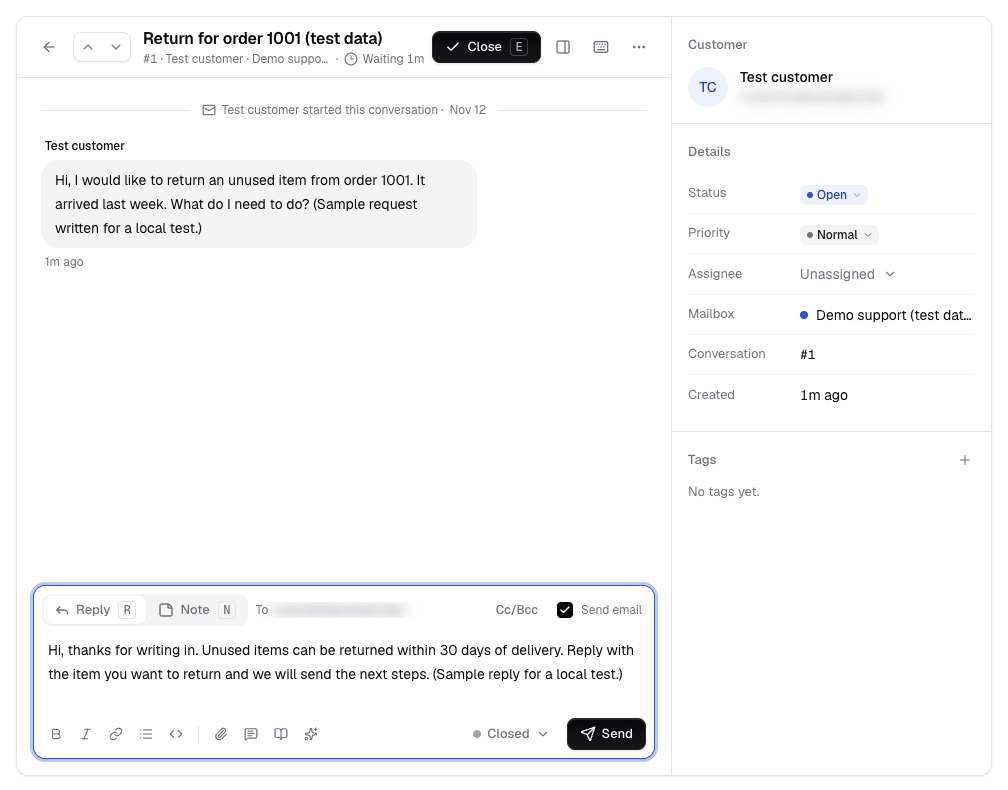
| Ticket numbers | Each mailbox numbers its tickets in order (#1, #2, …) |
| Status | Open, Pending, Resolved, Closed or Spam |
| Priority | Low, Normal, High or Urgent |
| Assignee | One teammate owns the ticket; mailboxes can auto-assign or require an assignee |
| Tags | Label tickets by topic for filtering |
| Saved replies | Reusable answers with placeholders such as the customer's first name and the ticket number |
| Attachments | Up to 10 MB per file on replies |
| Bulk actions | Update several tickets at once |
| AI drafts | With the AI drafts module on, start a reply from a suggested draft based on your agent's sources |
An optional auto-reply acknowledges each new email with its ticket number. If a mailbox is linked to an agent and AI drafts are on, the auto-reply can send the AI draft instead of a fixed acknowledgement. Review a sample of those drafts before you turn that on.
How replies are sent
Replies from the Inbox are sent by Chatsy's email service, with reply-to set to your mailbox's Chatsy address so the customer's answer comes back to the same ticket. If you need replies to come from your own sending service, a mailbox can use your own Postmark account (a server token, default From address and message stream). Chatsy has no separate custom sending-domain setup beyond that.
Chatsy adds an open-tracking pixel to outbound HTML replies.
Who can see a mailbox
Workspace Admins and the owner can see every mailbox. Members only see the mailboxes they have been given access to, at View, Edit or Manage level, from Team members.
From chat to email
When the Inbox is on, agents get a Create Support Ticket tool, so a chat that needs follow-up can become a ticket in the right mailbox. The widget can also show a manual "Create ticket" option. See Hand conversations to your team for the live chat side.
Related
- Shared inbox and email tickets: what the module includes and where it stops
- How to set up a support email address
- Message credits